Build a comparison
Two ways to create a side-by-side decision page: shortlist two candidates from your monitor, or paste two listing URLs directly.
A comparison is a single page that puts two properties side by side — the key facts, photos, and trade-offs in one place. There are two ways to create one.
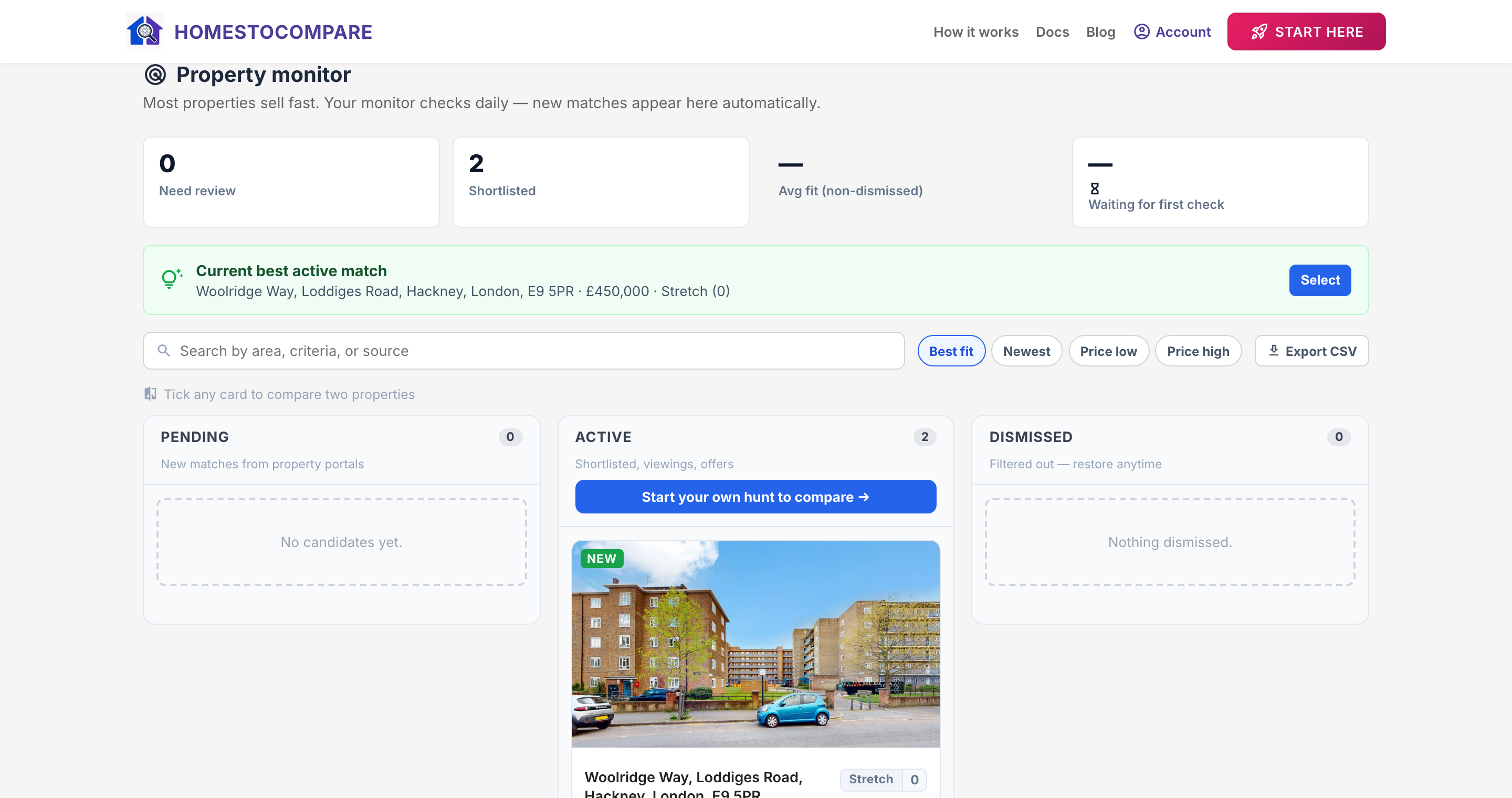
Option 1 — Compare two shortlisted properties
This is the main path. On your monitor board's Shortlisted tab, pick the two properties you're weighing up and choose Compare →. HomesToCompare builds a real comparison from those two candidates and takes you straight to it.
Option 2 — Paste two listing URLs
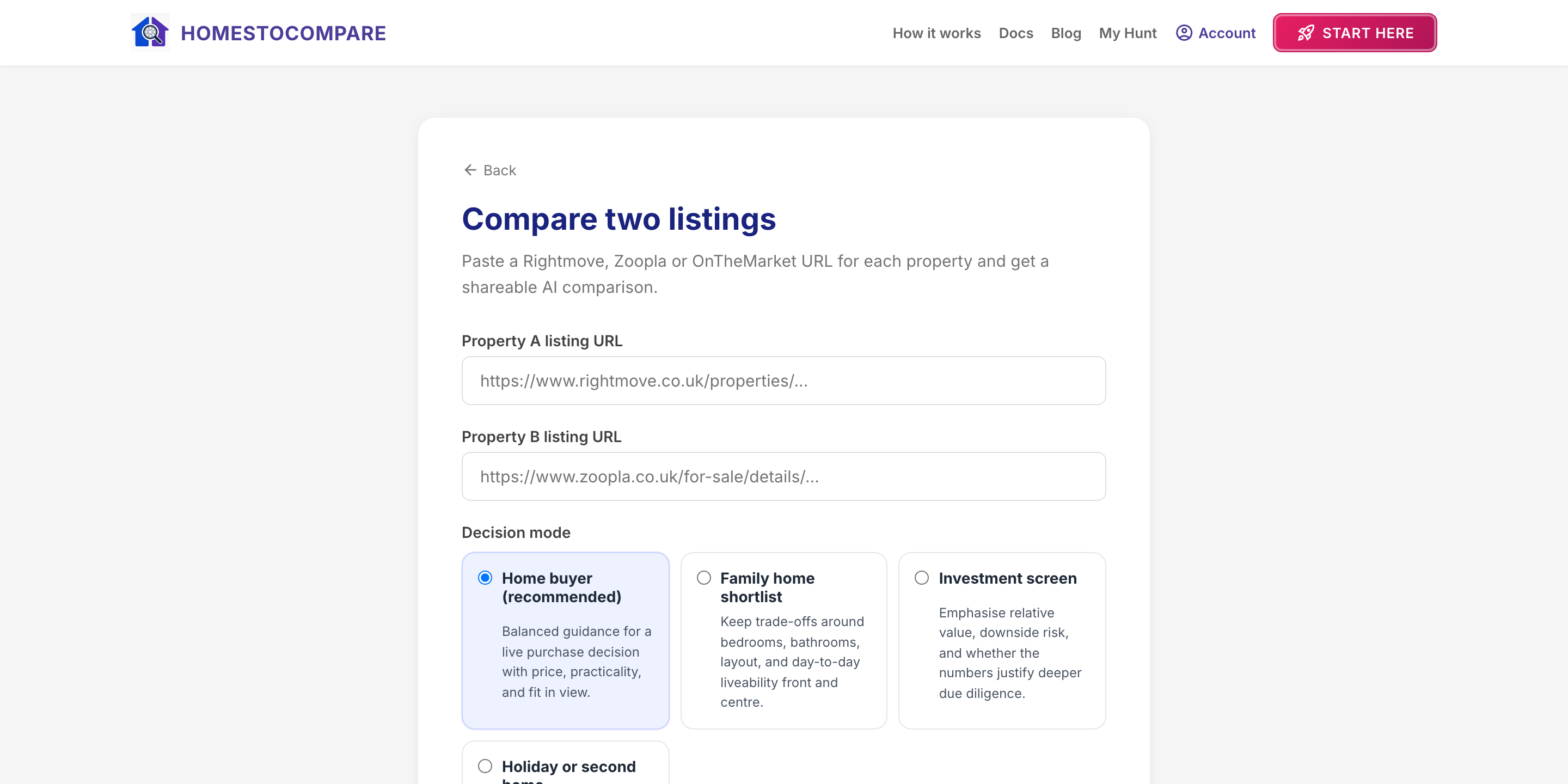
Already have two listings in mind? You can skip the hunt and paste their URLs directly on the start page. This is the quickest route if you arrived with a shortlist already in hand.
What happens next
HomesToCompare pulls together each property's facts and photos into a structured page. On paid plans, it also runs AI analysis — a recommendation, the trade-offs, and the checks to do before offering. The next guide is a full tour of that comparison page.